
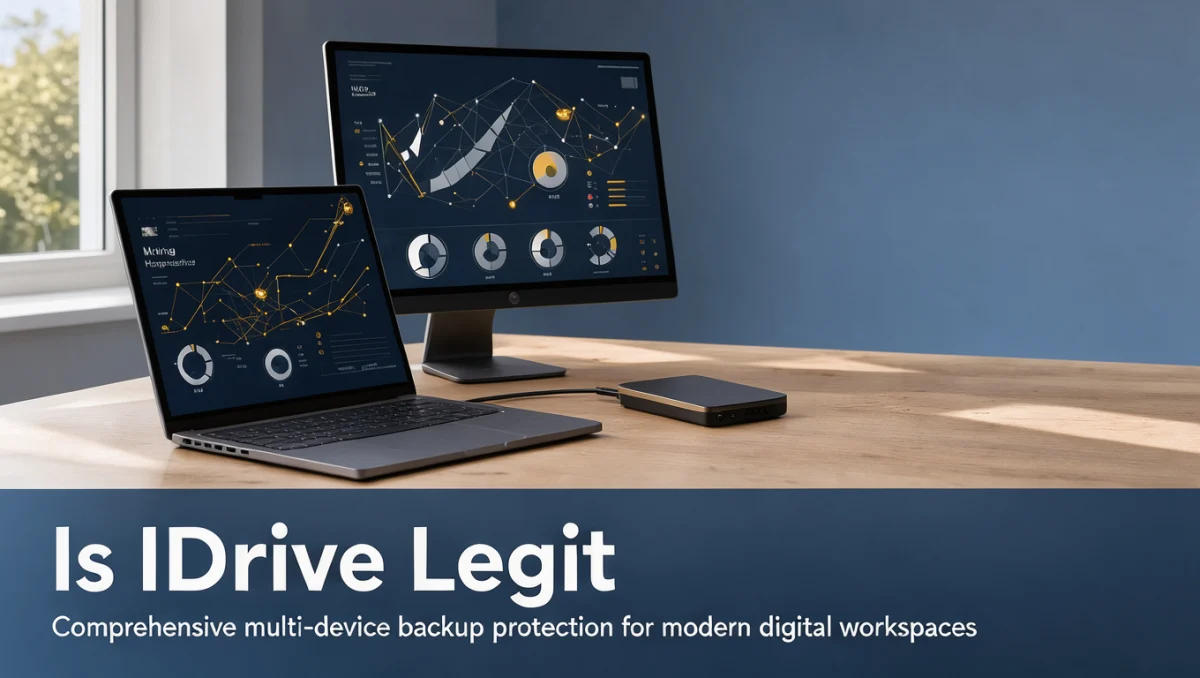
Before trusting any service with your files, it helps to ask a simple question: is IDrive legit enough to protect your work from hardware crashes and accidental deletions? Backup software creates copies of your data and lets you recover earlier versions when something goes wrong. Whether an online option fits your needs depends on how well it covers several devices, how storage is divided, and how restores work in practice. At Trust Reviews X, we test software so professionals can decide which tools deserve a recurring spot in their budget.
Choosing a backup platform starts with separating routine file protection from heavy disaster recovery setups. People who ask whether is idrive legit usually juggle laptops, desktops and external drives, and they want one dashboard that runs scheduled jobs without constant babysitting.
Quick verdict: IDrive scores 7.9/10 for wide multi-device coverage and central control across personal and business setups. It suits individuals and teams that need unified endpoint management. If you only want a set-and-forget archive for one computer with no configuration, another service may serve you better.
| Metric | Summary Details |
|---|---|
| Trustreviewsx score | 7.9/10 |
| Best for | Individuals and small teams that want centralized backup across several computers and drives under one subscription. |
| Not ideal for | Users who want fully maintenance-free background archiving on one machine without managing storage allowances. |
| Key strengths | Coordinated cross-device backup, scheduled syncing, flexible file recovery and central console administration. |
| What to check before buying | Confirm current storage allowances, multi-device limits and renewal terms on the official pricing page. |
1. How Trustreviewsx Reviewed IDrive

We assessed what IDrive is designed to do, who it serves and how it stacks up against similar tools. Our review uses seven Trustreviewsx criteria: features, ease of use, pricing and value, integrations, audience fit, support and competitive position. Plans and limits change frequently, so we flag which details to verify on the official website before purchasing. This article was researched and drafted with AI assistance, then reviewed and edited by the Trustreviewsx Editorial Team.
2. What IDrive Does and Who It Suits
IDrive is a backup and recovery service that copies files, folders and system records to remote servers so you can retrieve them after hardware failure. It guards against data loss from mechanical breakdowns, human mistakes, accidental overwrites and physical damage to a location, giving users an orderly way to rebuild their records.
The service fits freelancers, small business owners, office staff and corporate departments that need to protect information across many endpoints. Organizations with laptops, workstations, external drives and network storage often struggle to run separate backup tools on each machine, which makes a single console appealing.
Knowledge workers using collaboration and productivity tools need confidence that ongoing work stays safe without interrupting projects. IDrive supports this with background monitoring, scheduled runs and remote visibility, so you can check progress without constant manual effort.
3. Core Features of IDrive

A data protection tool is defined by what it actually delivers day to day. IDrive covers routine backups, dependable restore paths and centralized management.
3.1. Multi-Device Endpoint Backup
IDrive can back up several hardware endpoints under one administrative account. Rather than buying a separate plan for each computer in an office, you can link multiple workstations and storage drives to a single shared pool. Administrators assign backup tasks across machines and monitor progress from one overview dashboard.
3.2. Automated Scheduling and Incremental Sync
Backups run on set timetables or during quiet hours to avoid congesting the network. The software tracks file changes, so later cycles upload only modified data instead of resending entire folders. You can set recurring backup calendars, enable near-real-time updates and pause transfers during busy working hours.
3.3. File Versioning and System Restoration
Keeping earlier copies of edited documents is essential when mistakes happen. IDrive retains multiple versions of backed-up files, so you can roll back to a particular point in time if something becomes corrupted or is accidentally changed. Restore options let you download single items, full folder trees or entire system images to the original computer or a different machine.
3.4. Archive Management and Data Retention
Good data management practice calls for keeping historical records even after working drafts are removed from local drives. IDrive can preserve locally deleted files in the remote repository until you choose to purge them. This guards against accidental deletion and gives teams reliable access to reference material from earlier quarters.
4. Ease of Use and Learning Curve
A systematic backup routine needs clear navigation and understandable scheduling options. IDrive balances control with approachable defaults, though users who want to fine-tune every setting will need some planning during setup.
Initial setup involves choosing folders, deciding how often backups run and setting retention behavior. The software offers preset selections covering common user documents, desktop folders and media libraries, so non-technical users can start protecting files without mapping complicated directory paths.
Advanced options such as custom bandwidth throttling, mapped network drive recognition and selective folder exclusion require some familiarity with the admin menus. Teams with moderate technical experience will find these manageable, while solo users hoping for zero interaction after signup should expect a short period spent defining their file structure.
5. IDrive Pros and Cons
Knowing both the strengths and practical trade-offs of a tool helps you avoid surprises after purchase.
5.1. Advantages of Using IDrive
- Broad hardware coverage: Protects multiple computers, external drives and network shares under one administrative profile.
- Granular scheduling controls: Lets you customize backup times, upload bandwidth limits and notification alerts.
- Historical file recovery: Keeps earlier file versions so you can recover from accidental edits or unwanted changes.
- Flexible restore options: Supports retrieving individual files or full directory structures to any connected machine.
5.2. Practical Considerations and Trade-Offs
- Dense configuration menus: Settings can feel overwhelming if you only want simple drag-and-drop operation; accepting the recommended defaults keeps things straightforward.
- Manual storage tracking: Pooling several computers means monitoring total usage so the account doesn't exceed plan capacity unnoticed; scheduling periodic quota reviews solves this.
- Long initial upload: Moving large datasets over a standard internet connection takes time; running the first large backup overnight avoids slowing down your workstation.
6. IDrive vs Similar Tools
Judging IDrive means comparing it with other backup platforms aimed at different types of users.
| Platform | Target Audience | Primary Positioning | When to Consider |
|---|---|---|---|
| IDrive | Individuals and businesses managing multiple hardware units | Centralized multi-endpoint backup and shared capacity management | When you want to cover several computers under one subscription account |
| Backblaze | Individual computer users seeking simplified operation | Uncapped personal computer archiving focused on set-and-forget simplicity | When you need background protection for one workstation without capacity calculations |
| Carbonite | Home offices and small commercial workstations | Automated background preservation tailored to everyday business files | When your main goal is automatic document protection with minimal setup |
| Acronis | Technical specialists and system administrators | Integrated backup suites combined with extensive security workflows | When your infrastructure requires advanced system cloning and deep management |
Backblaze builds its service around protecting a single machine without tracking storage quotas, while IDrive suits people who have a laptop, a desktop and external drives that all need to report to one dashboard. Carbonite offers streamlined workstation protection, and Acronis focuses on deeper technical system recovery for administrators.
7. Who Should Use IDrive
Different roles and business structures have distinct needs for data continuity and storage management.
7.1. Freelancers and Creative Professionals
Independent contractors who manage client deliverables across a main laptop and extra archive drives benefit from connecting several hardware sources to one account. Version history means accidental edits during creative work can be undone without losing project milestones.
7.2. Small Business Owners
Founders leading small teams can oversee backup routines across staff computers without signing separate vendor contracts for every employee. A central dashboard lets leaders confirm that company records, customer documents and financial spreadsheets are backed up consistently.
7.3. Office Workers and Remote Teams
Staff working from home or from regional offices need safeguards that operate outside the corporate network. Automated scheduling keeps daily reports and spreadsheets mirrored without anyone exporting files to thumb drives each day.
7.4. Students and Academic Researchers
Scholars writing dissertations, running lab research or completing coursework need protection against a sudden laptop failure. Scheduled backups preserve drafts across semesters and reduce the risk of losing term projects.
7.5. Who Should Consider Other Options
If you use only one laptop and want a completely hands-off experience with no capacity planning, a dedicated single-device service may be simpler. Enterprises that need full bare-metal server recovery across data centers will likely require specialized enterprise software.
8. How to Choose the Right IDrive Plan
Vendors structure subscriptions around storage pools, user seats and management features. Picking the right tier means assessing your needs before you subscribe.
| What to Check on the Official Pricing Page | Why It Matters |
|---|---|
| Total storage capacity tiers | Storage allowances determine how many media files, system images and archives you can keep at once. |
| Number of supported endpoints | Some tiers cover personal hardware, while others support multi-user team administration. |
| Server and network drive support | Certain business tiers include network-attached storage and database backups that entry plans leave out. |
| Account management controls | Team plans offer admin consoles for assigning user permissions and auditing backup health. |
| Billing cycles and renewal schedules | Introductory promotional pricing often changes at renewal, which affects ongoing costs. |
9. Frequently Asked Questions
What factors should determine how much backup storage I need?
Add up the current disk usage across every computer you plan to include, then allow extra room for version history and future files. Because system images and media archives take up a lot of space, choosing a plan with headroom for yearly growth helps you avoid unexpected limits.
How can I keep backup costs manageable?
Review directories before the first backup so temporary downloads, unneeded system caches and duplicate video files are excluded. Purging obsolete project archives from time to time keeps you within your plan's allowance without an early upgrade.
Where should teams confirm administrative features before buying?
Check the plan comparison on the official IDrive website to see whether user role assignments, sub-account creation and centralized billing are included in the tier you are considering. Reviewing current documentation ensures the plan matches your internal IT policies.
How should businesses schedule backups for good performance?
Run major system backups and large transfers outside business hours when bandwidth is free. Save daytime backups for light incremental changes so that internet access for daily work stays smooth.
10. Final Verdict: Is IDrive Legit for Your Backup Needs?
Deciding whether IDrive offers real value comes down to matching its multi-device capabilities with your backup requirements. It provides a flexible foundation for managing files across several computers from one place.
| Criterion | Score /10 | Reason |
|---|---|---|
| Features | 8.5/10 | Offers thorough multi-device scheduling, incremental updates, file versioning and full folder restoration. |
| Ease of Use | 7.5/10 | Standard backups are intuitive, though detailed configuration and bandwidth settings take time to learn. |
| Pricing and Value | 8.0/10 | Subscription tiers cover multi-device pools; buyers should confirm current storage limits on the official site. |
| Integrations | 7.0/10 | Works reliably across common workstation setups; check official documentation for specific network storage connections. |
| Audience Fit | 8.5/10 | Well suited to freelancers, families and growing businesses managing several devices under one account. |
| Support | 7.5/10 | Provides established documentation and support channels; confirm current options before purchasing. |
| Competitive Position | 8.0/10 | Stands apart from single-computer services by covering multiple devices under one account. |
Overall score: 7.9/10
For independent professionals and small companies protecting several devices, IDrive is an effective and flexible option that keeps important files organized. If you want fully hands-off archiving on a single machine, compare dedicated single-device alternatives; multi-device operators will value the centralized control.
Have more questions about choosing data protection tools? Contact the Trustreviewsx team at https://trustreviewsx.com/contact/ or follow our updates on LinkedIn at https://www.linkedin.com/company/trustreviewsx/.
See More Collaboration & Productivity · Review Craft X